Troubleshooting Card Decline Errors When Adding a Payment Method
Scope
This article is intended for Chargebee's customers using Chargebee with Stripe as their payment gateway, who encounter card decline errors when attempting to add a customer payment method.
Problem Statement
Your customers may face card decline errors (e.g., "Your card was declined") when adding a payment method through the Chargebee Admin Console or via a payment method request link. This issue is often related to missing customer information or card authorization requirements.
"Problem while adding the payment method. Error message: Your card was declined."
Solution
To resolve card decline issues during payment method addition, follow these steps:
1. Confirm Method of Card Addition
Determine how the card is being added:
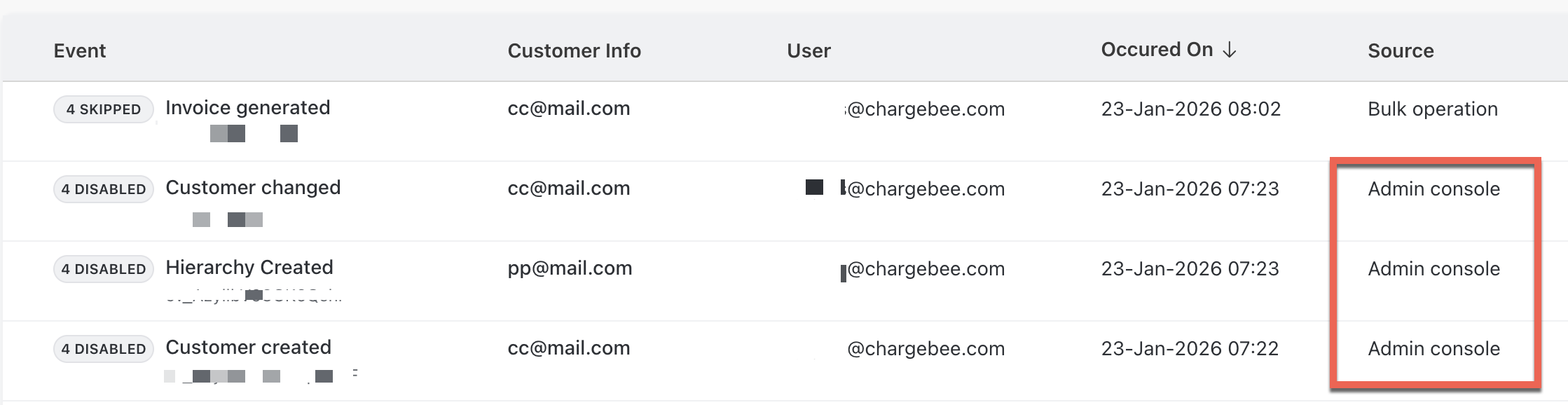
- Admin Console: When you add cards using Chargebee app, it displays the event as Admin Console under the Source column in Logs.
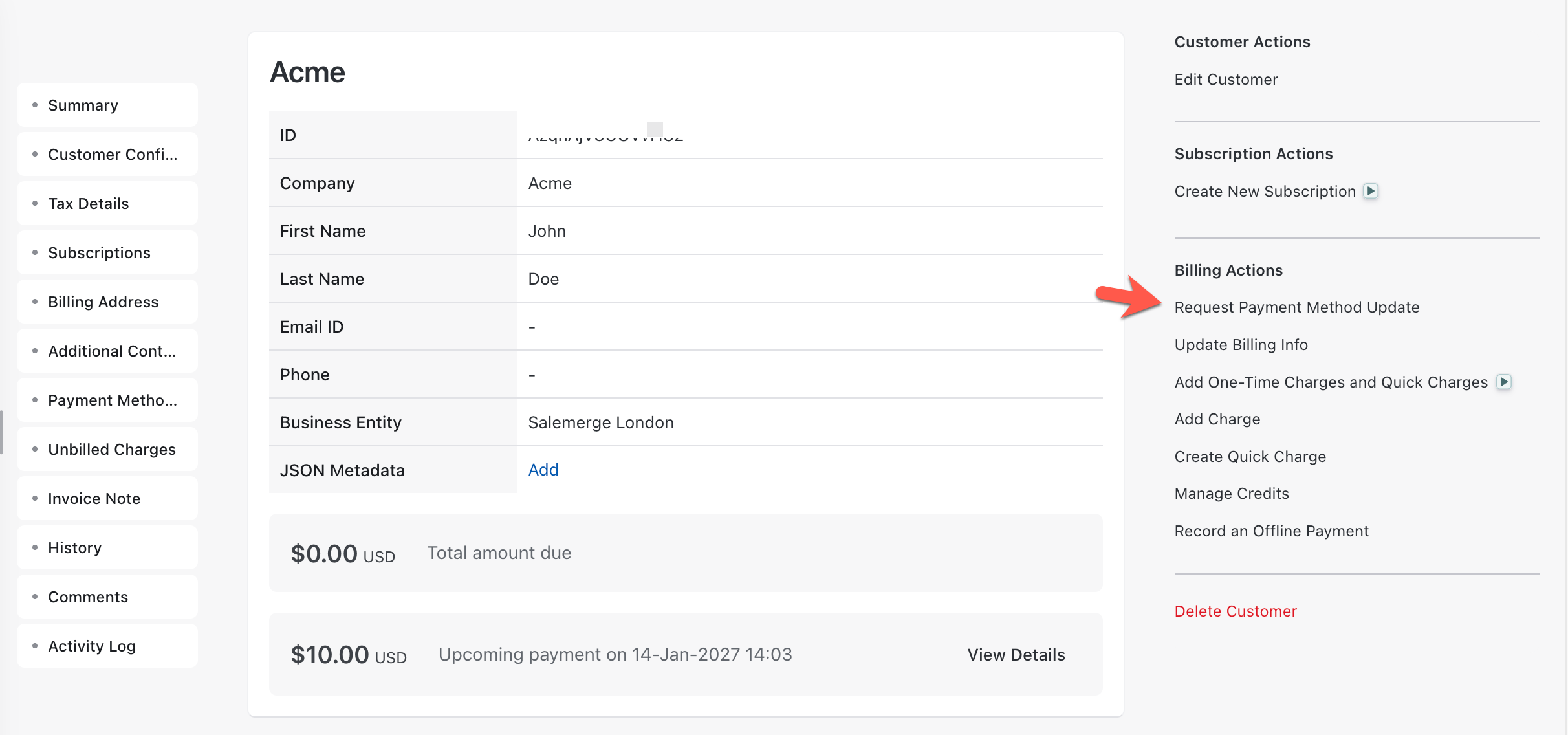
- Request Payment Method Link: Added directly by your customer.
If added via the Admin Console and the card is declined, try sending a Request Payment Method link to your customer. This can help resolve issues with authorization, particularly for cards like AMEX that may have additional security requirements.
2. Ensure Complete Customer Information
Check your customer record in Chargebee to ensure the following fields are filled:
- First Name
- Last Name
Many banks require these details during payment method authorization. If these fields are missing:
- Go to your customer's record and update the First Name and Last Name.
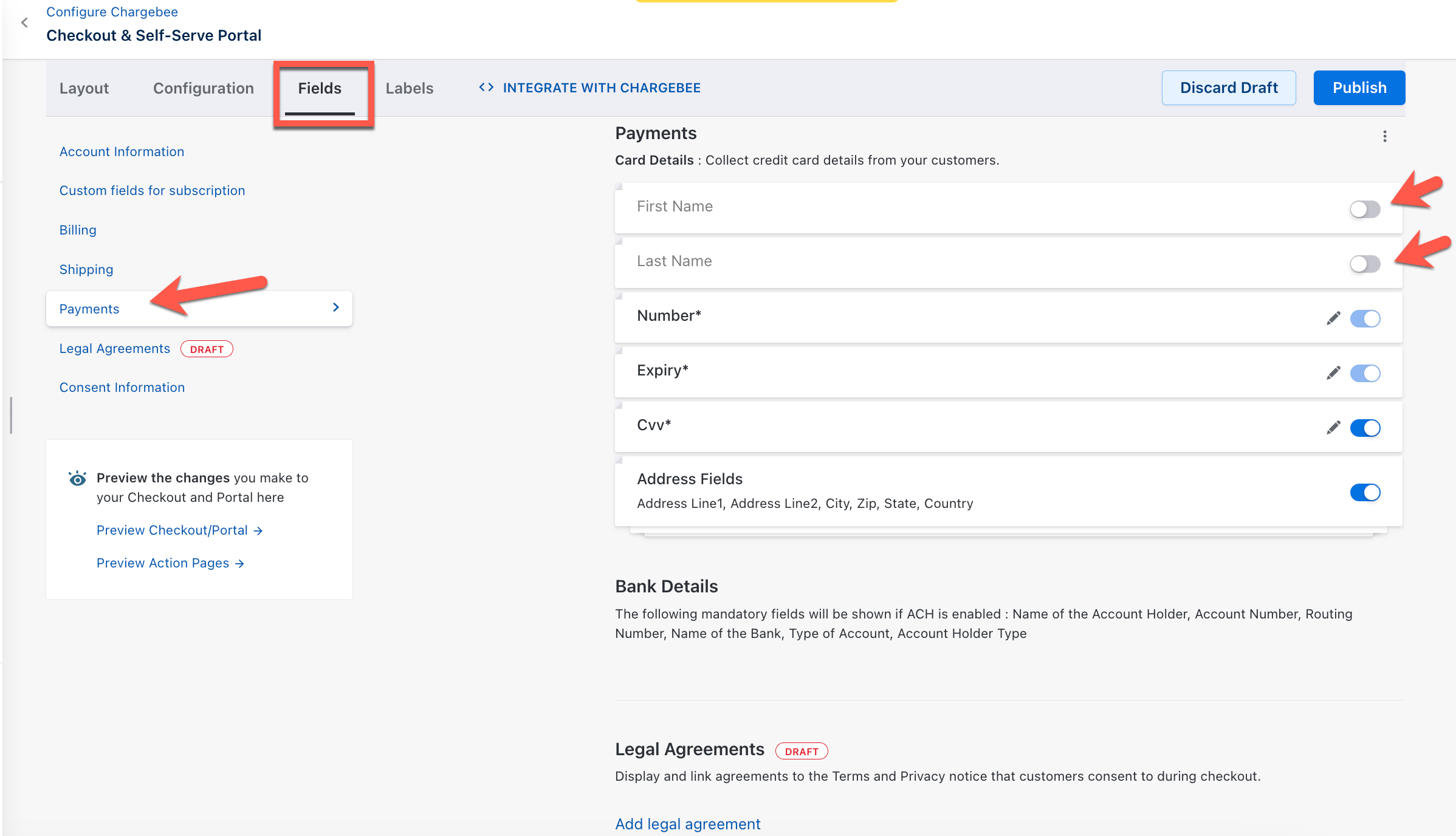
- Navigate to Settings > Configure Chargebee > Checkout & Self-Serve Portal > Fields > Payments.
- Enable the First Name and Last Name fields so they are captured during checkout.
3. Retry Adding the Card
Once your customer details are updated, retry adding the card using one of the following:
- Admin Console: Navigate to Logs > Events. Under the Source column check for Admin Console.
- Payment Method Request Link: Navigate to Customers > Customer Details Page > Select a customer > Request Payment Method Update.
4. Investigate with the Bank
If the issue persists despite the above steps:
- Advise your customer to contact their bank. Some decline errors may occur due to:
- Fraud detection mechanisms
- Temporary card blocks
- Unrecognized authorization attempts
5. Escalation
If all steps fail and the card is still being declined:
- Gather screenshots and error messages from your customer.
- Escalate the issue to Chargebee support for further investigation.
Note
In the incident described, the card was ultimately blocked by your customer's bank due to suspected fraudulent activity. Once clarified with the bank, the issue was resolved.
Was this article helpful?