Chargebee MCP Servers
The Chargebee Model Context Protocol (MCP) servers enable you to connect AI clients to Chargebee systems through standardized tools and structured context. Connect AI clients such as Cursor, Claude, ChatGPT, Codex, and other MCP-compatible tools to Chargebee MCP Servers to securely access selected capabilities.
Configure how external AI clients access Chargebee, including data, workflows, and product knowledge.
Note
You are responsible for any actions AI clients perform through Chargebee MCP servers, including write actions. Approval behavior depends on the MCP client, so connect only trusted clients and review actions before they run.
System MCP servers
Chargebee provides the following predefined MCP servers. Select a server to view configuration, authentication, and toolset details.
- Knowledge Base MCP Server - Answer questions using Chargebee docs and API references
- Data Lookup MCP Server - Retrieve customer, subscription, invoice, and payment data from your Chargebee site
- Onboarding MCP Server - Create product catalogs and generate demo data for test and sandbox sites
Custom MCP servers
Create custom MCP servers by combining Chargebee tools for your specific use cases.
- Custom MCP Server - Combine Chargebee tools into a server tailored to your use case
Configure tool inputs
Configure tool inputs to control what AI tools like Claude, ChatGPT, Cursor, etc can send when calling operation tools on your MCP server. You can configure the tool input where you can:
- Disable fields: Hide a field entirely so the agent cannot see or send it.
- Set default values: Auto-fill a field value on every call.
- Add constraints: Set min/max limits on field values, string lengths, and array sizes.
Note
Tool input configurations apply only to the specific server and tool where they are set.
Set up tool input configuration
- Log in to Chargebee Billing.
- Navigate to Settings > Configure Chargebee > Agentic AI > MCP Servers.
- Select the MCP server you want to configure.
- Go to the Tools tab and click the tool you want to configure.
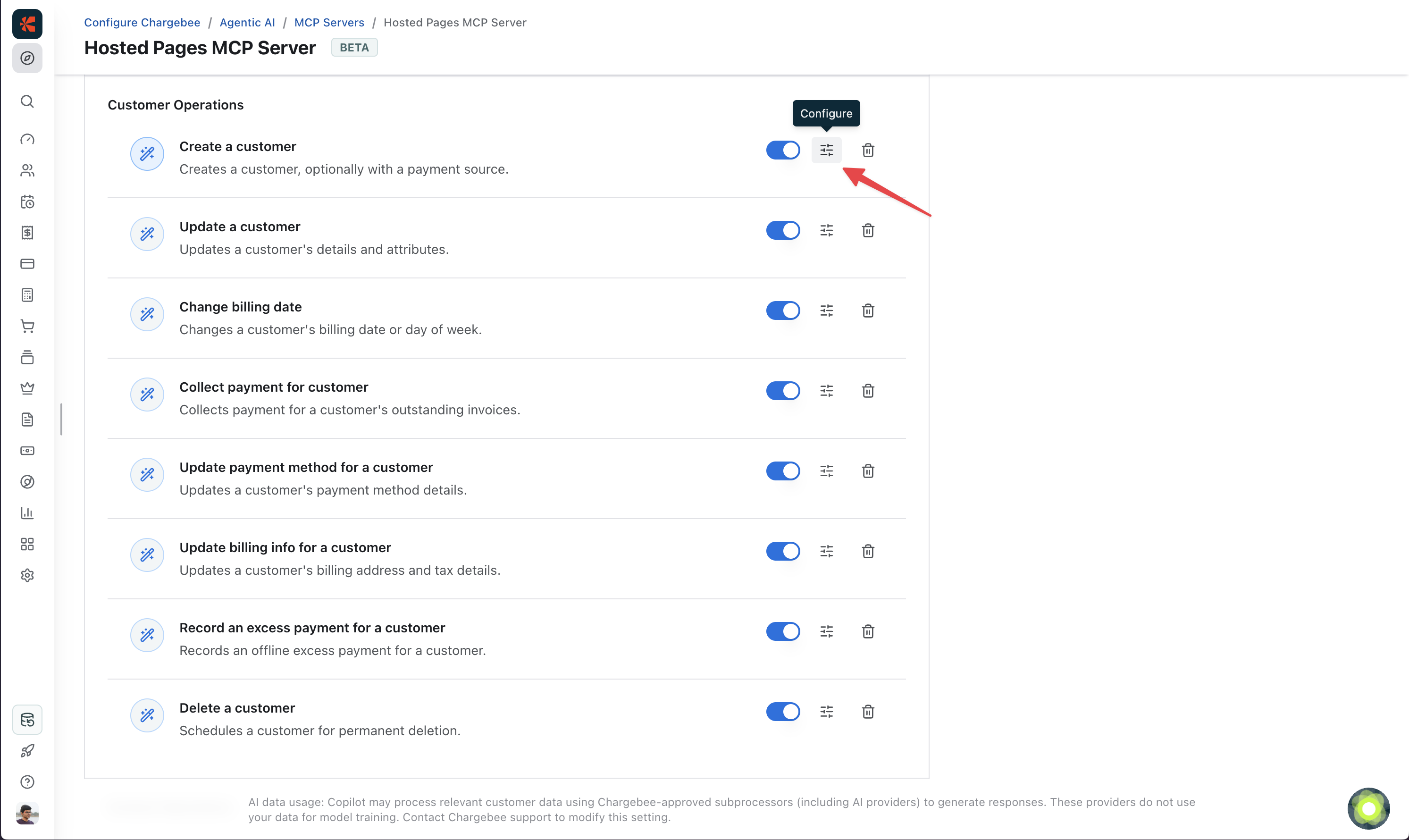
- Configure the inputs for the fields you want to constrain.
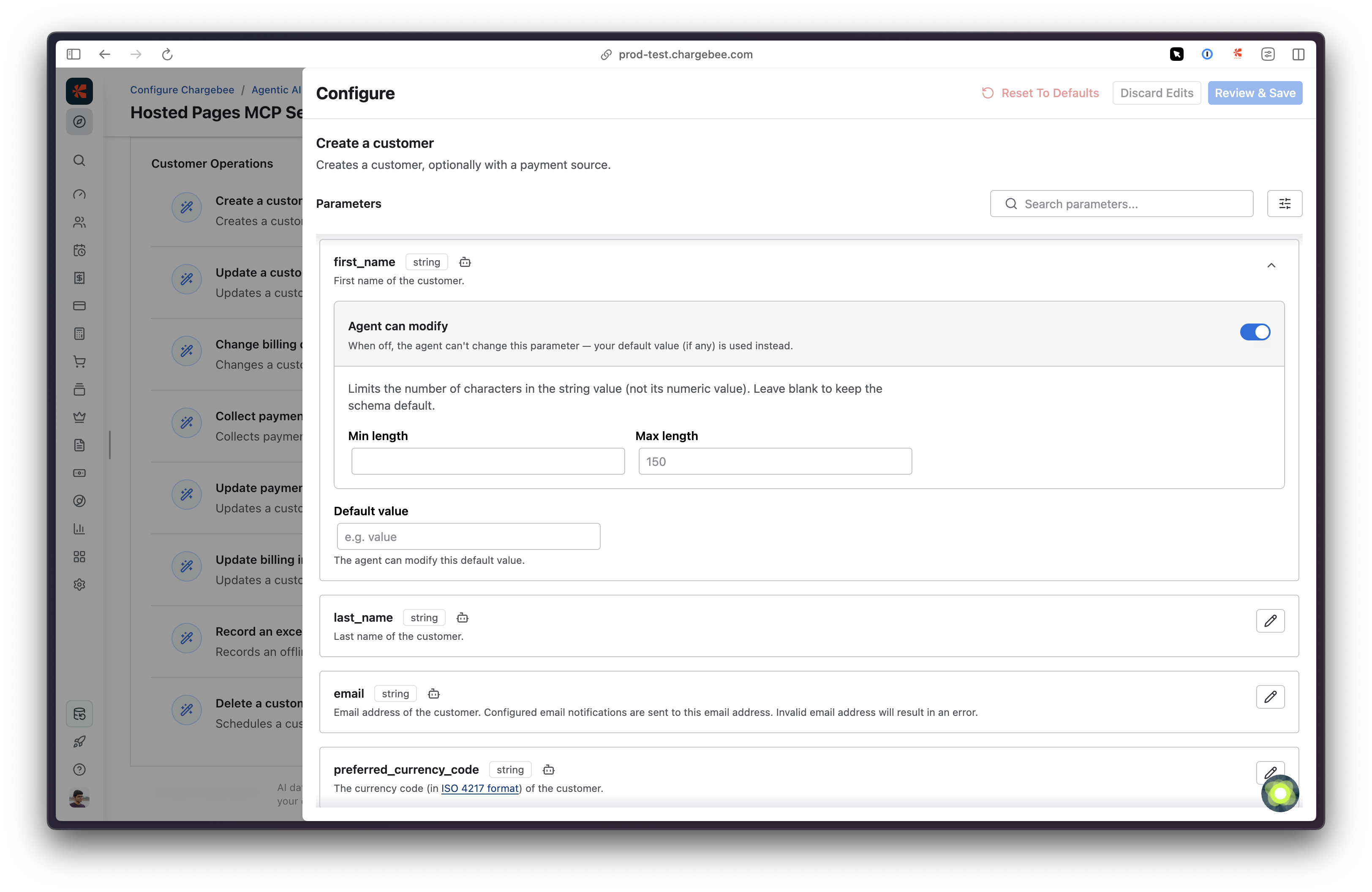
- Click Save to apply the changes.
See also
- Chargebee Copilot: Use AI inside the Chargebee Billing UI to answer questions and complete tasks.
Was this article helpful?