New in Chargebee: Explore Reveal and understand your payment performance end-to-end.Try Now
Docschargebee docs
HomeBillingCPQPaymentsRevRecGrowthReveal
Support

Product Updates


  • Release Notes

Getting Started


  • Overview
  • Chargebee Billing Data Centers
  • Object Relationship Model
  • Understanding Sites
  • Chargebee Tech Glossary
  • Articles and FAQ

Implementing Chargebee


  • Implementation Guide
  • Go-live Checklist
  • Articles and FAQ

Agentic AI


  • Chargebee Copilot
  • MCP Servers

Developer Resources


  • Developer Resources Overview
  • API Explorer
  • Articles and FAQ

Chargebee Apps


  • Chargebee Apps CLI Developer Guide

Product Catalog


  • Product Catalog Overview
  • Coupons
  • Articles and FAQ

Subscriptions


  • Working with Subscriptions
  • Billing
  • Orders
  • Articles and FAQ

Customers


  • Managing Customers
  • Account Hierarchy
  • Email Notifications
  • Branding
  • Configure Multiple Languages
  • Articles and FAQ

Entitlements


  • Entitlements Overview
  • Features Overview
  • Feature Management
  • Managing Product Entitlements
  • Subscription Entitlements
  • Customer Entitlements
  • Grandfathering Entitlements
  • Articles and FAQ

Usage Based Billing


  • Understanding Usages
  • Setting up Usage Based Billing
  • Usage Alerts
  • Prepaid credits

Invoices and Credit Notes


  • Invoices
  • Credit Notes
  • Quotes [Legacy]
  • Transactions
  • Articles and FAQ

Taxes


  • Overview
  • Configuring Taxes
  • Country-specific Taxes
  • Articles and FAQ

Hosted Capabilities


  • Overview
  • Hosted Checkout
  • Hosted Self-Serve Portal
  • Hosted Pages Features
  • Additional Hosted Pages
  • Payment Components
  • Pricing Table
  • Managing Payments with Chargebee.js
  • Mobile-Optimized Hosted Pages
  • Articles and FAQ

Site Configuration


  • Users & Roles
  • Custom Fields & Metadata
  • Approvals
  • Mandatory Fields
  • File Attachments & Comments
  • Advanced Filter Options
  • Multicurrency Pricing
  • Multi-decimal Support
  • Configuring Reason Codes
  • Events and Webhooks
  • API Keys
  • Time Zone
  • Time Machine
  • Transfer Configurations
  • Articles and FAQ

Multi Business Entity


  • Multi Business Entity Overview
  • Customer Transfer Overview
  • Articles and FAQ

Mobile Subscriptions


  • Overview
  • Omnichannel Subscriptions
  • Omnichannel One-Time Orders
  • Mobile Subscriptions (Legacy)

Reports and Analytics


  • RevenueStory
  • Home Dashboard
  • Frequently Asked Questions
  • FAQs for Classic Reports Sunset
  • Articles and FAQ

Integrations


  • Sales
  • Customer Support and Success
  • Finance
  • Tax
  • eInvoicing
  • Marketing
  • Stitch
  • Collaboration
  • Contract Management
  • Ecommerce Management
  • Articles and FAQ

Data Privacy & Security


  • Two Factor Authentication
  • SAML Single Sign-On
  • System for Cross-Domain Identity Management (SCIM)
  • EU-GDPR
  • Consent Management
  • Personal Data Management
  • Compliance Certificates
  • HIPAA Guidelines
  • PCI Recommendations and Integration Types
  • Articles and FAQ

Data Operations


  • Bulk Operations
  • Migration
  • Articles and FAQ

Switch payment made from one invoice to another.

Problem Statement

This article helps you understand switch payment made from one invoice to another..

Solution

Summary

If the merchant or the customer has paid an incorrect subscription, instead of another service/product, then you can Remove the Payments from the paid invoice under Payments and Credits which will be added to Excess Payments. Then, you can transfer the excess payments to the Payment Due invoice by using the Apply Payments on the invoice.

Solution

Eg: For instance, a customer has Company A and Company B subscriptions/products/services/companies. The subscription Company A was incorrectly charged (from Checkout/Chargebee portal) instead of Company B on which the payments should be transferred from Company A to Company B.

Here is how!
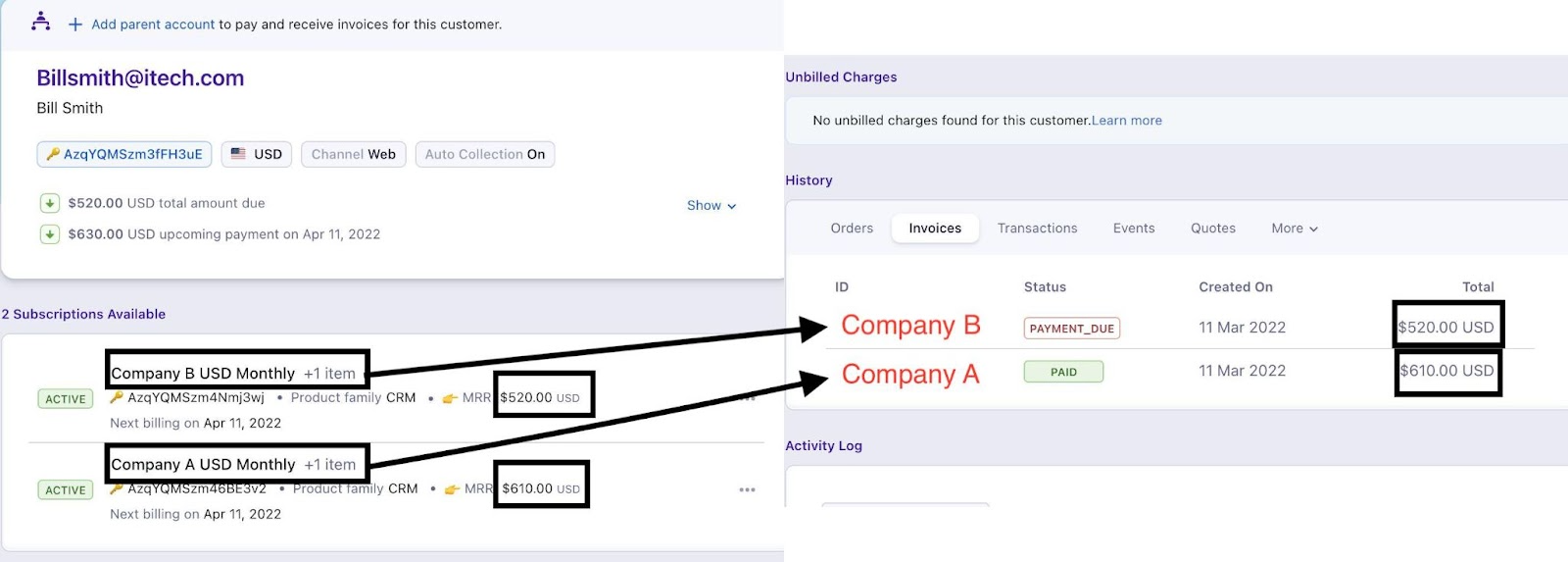
image

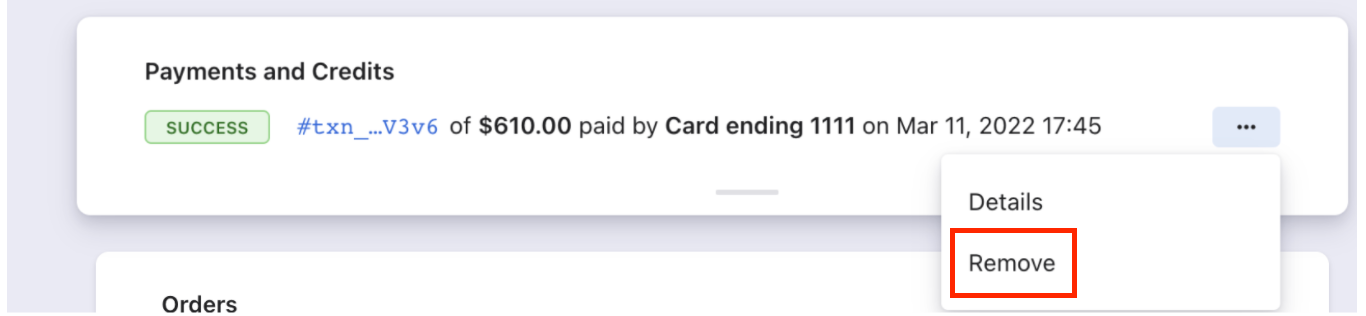
Step 1: Open the incorrectly charged invoice from Subscription > Invoices> Incorrectly paid Invoice. Scroll down to 'Payments and Credits'' then click on the

image
ellipsis button on the right-hand corner and choose 'Remove'.

image

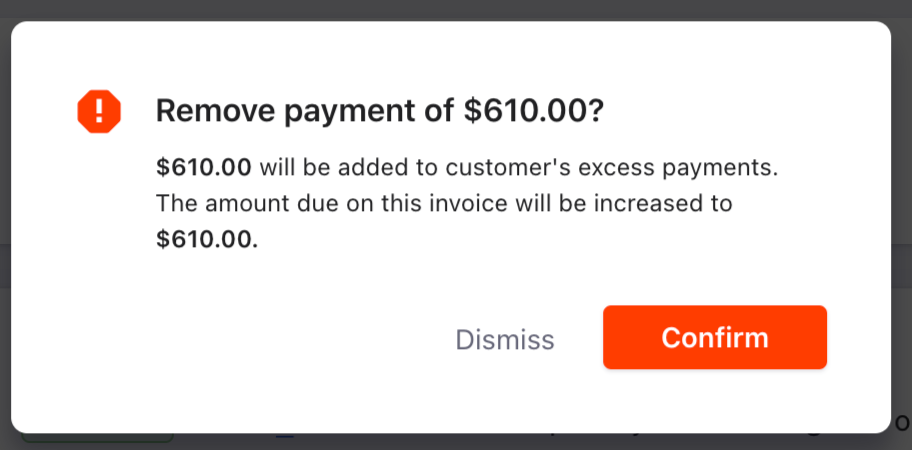
You will get a notification that this amount will be added to excess payments. On clicking 'Confirm' this transaction amount will be moved to Excess payments.
image

Also the 'Paid' invoice will be moved to 'Not Paid' invoice.
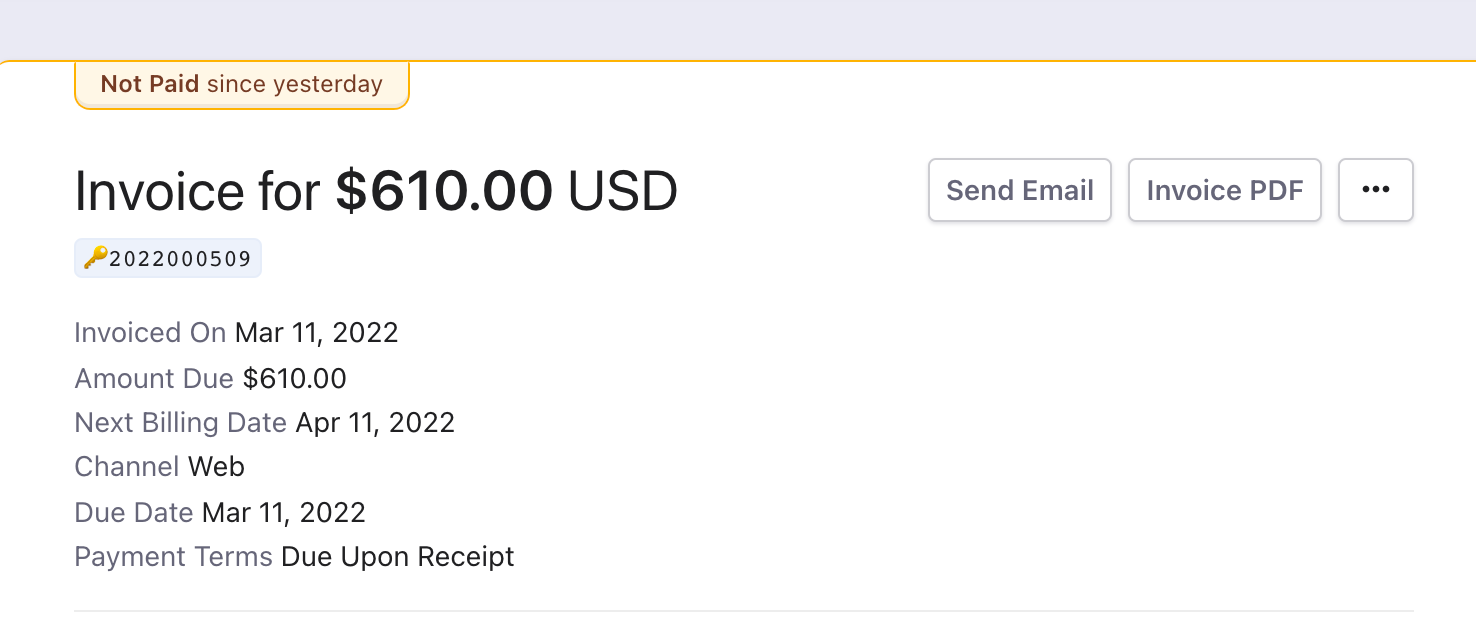
image

You should also see the 'Excess Payments' under Customer Account.
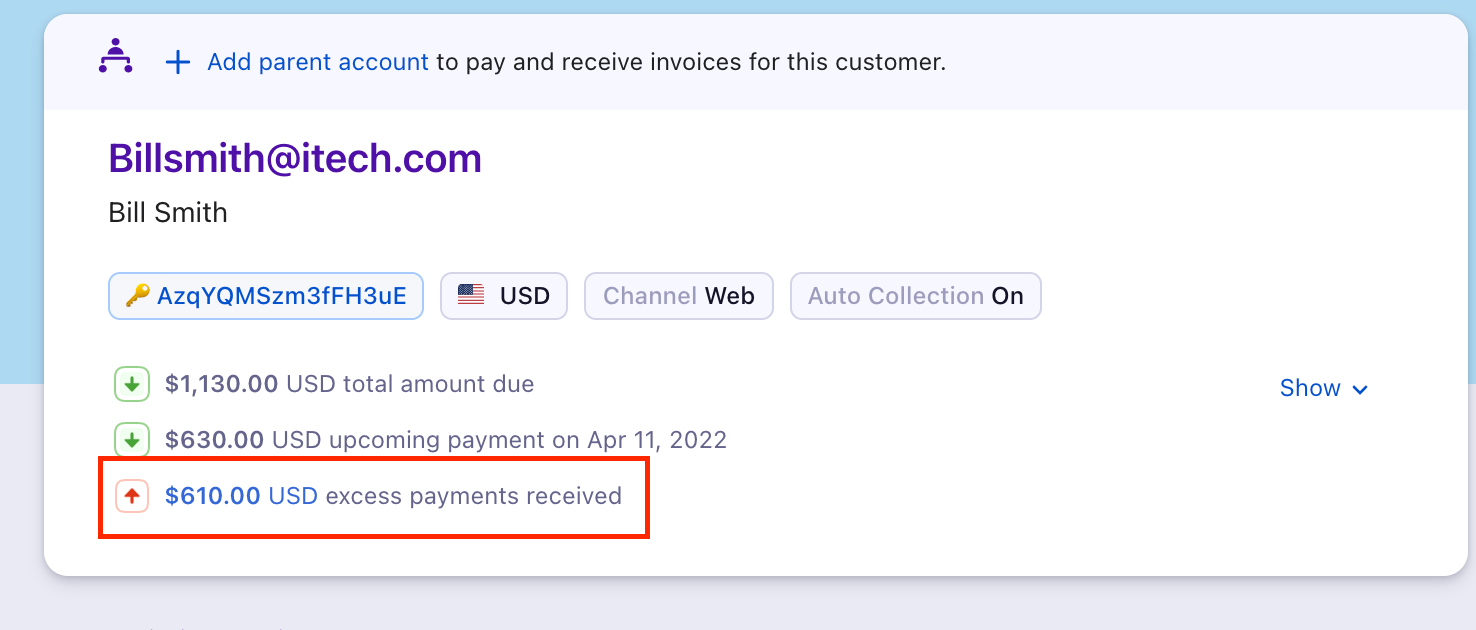
image

Note

Total Excess Payments for a specific customer We have updated our summary box to provide a more streamlined and elegant user experience. With this upgrade, hyperlinks have been added to the summary box, allowing users to easily access related information. The Total Excess Payments on Summary Section is available at the top of the Customer details page which provides a total amount due of a customer and hyperlink that directs to the details. Refer to this link for more details.

Step 2:

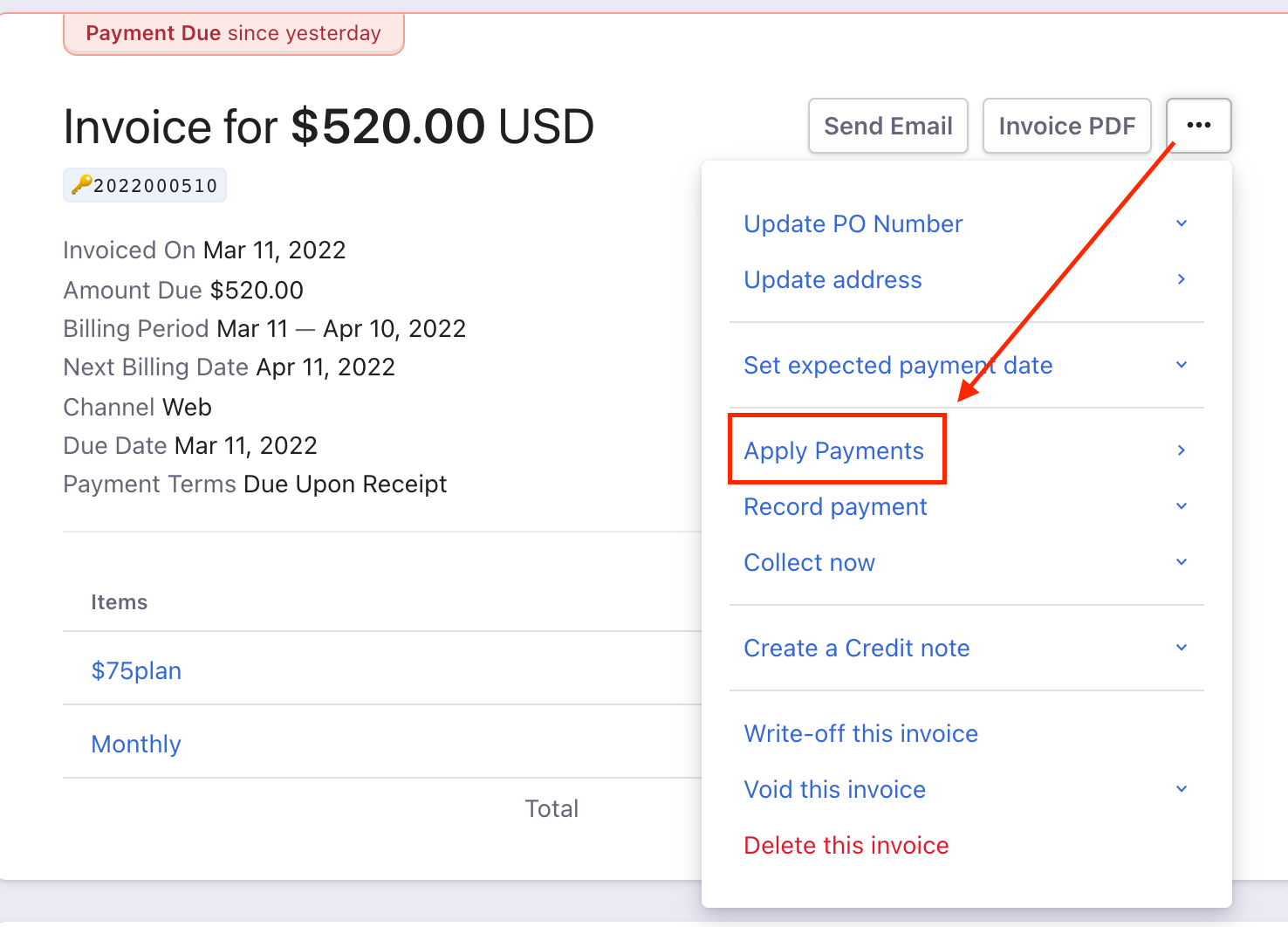
Then you need to open the invoice that has to be paid which is in Payment Due and click on

image
ellipsis button on the right-hand corner and choose 'Apply Payments'. The Apply Payments option will only be available if there are any excess payments.

image

Then, you will get a notification to choose the excess payment which will be starting as '#txn_...' and click 'Apply' by adding comments if any.
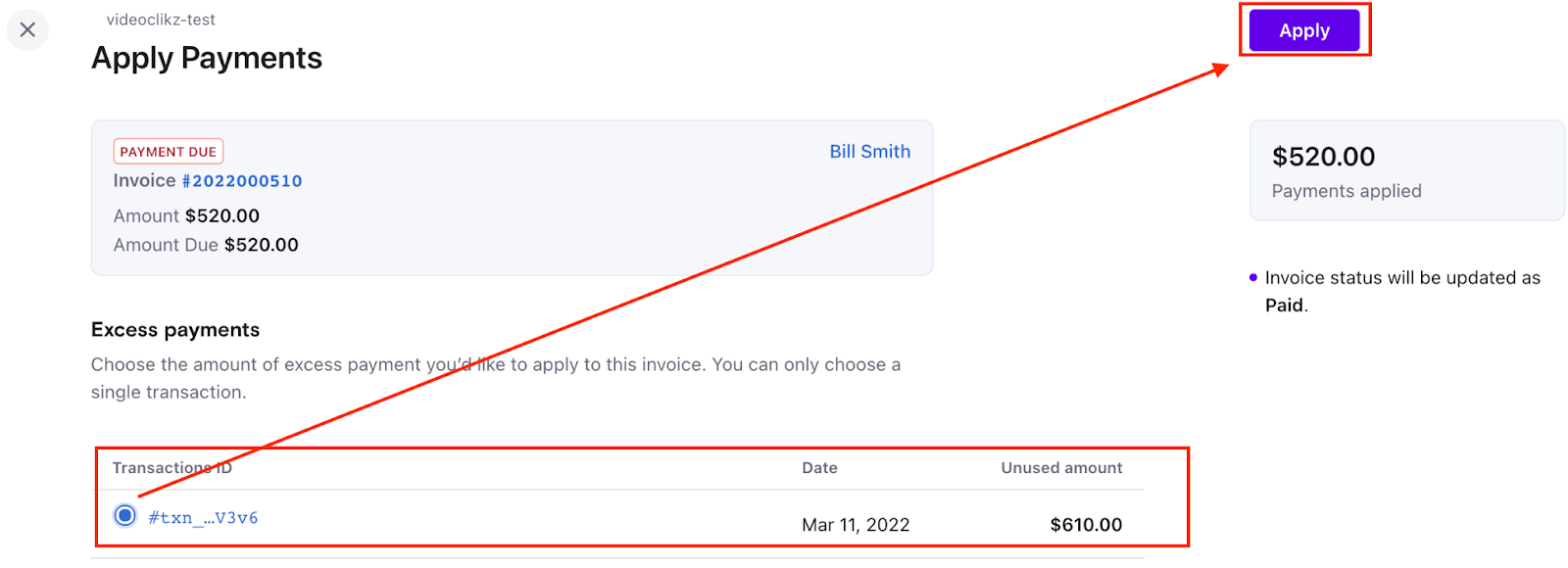
image

Then, the 'Payment Due' invoice will be updated as 'Paid'.
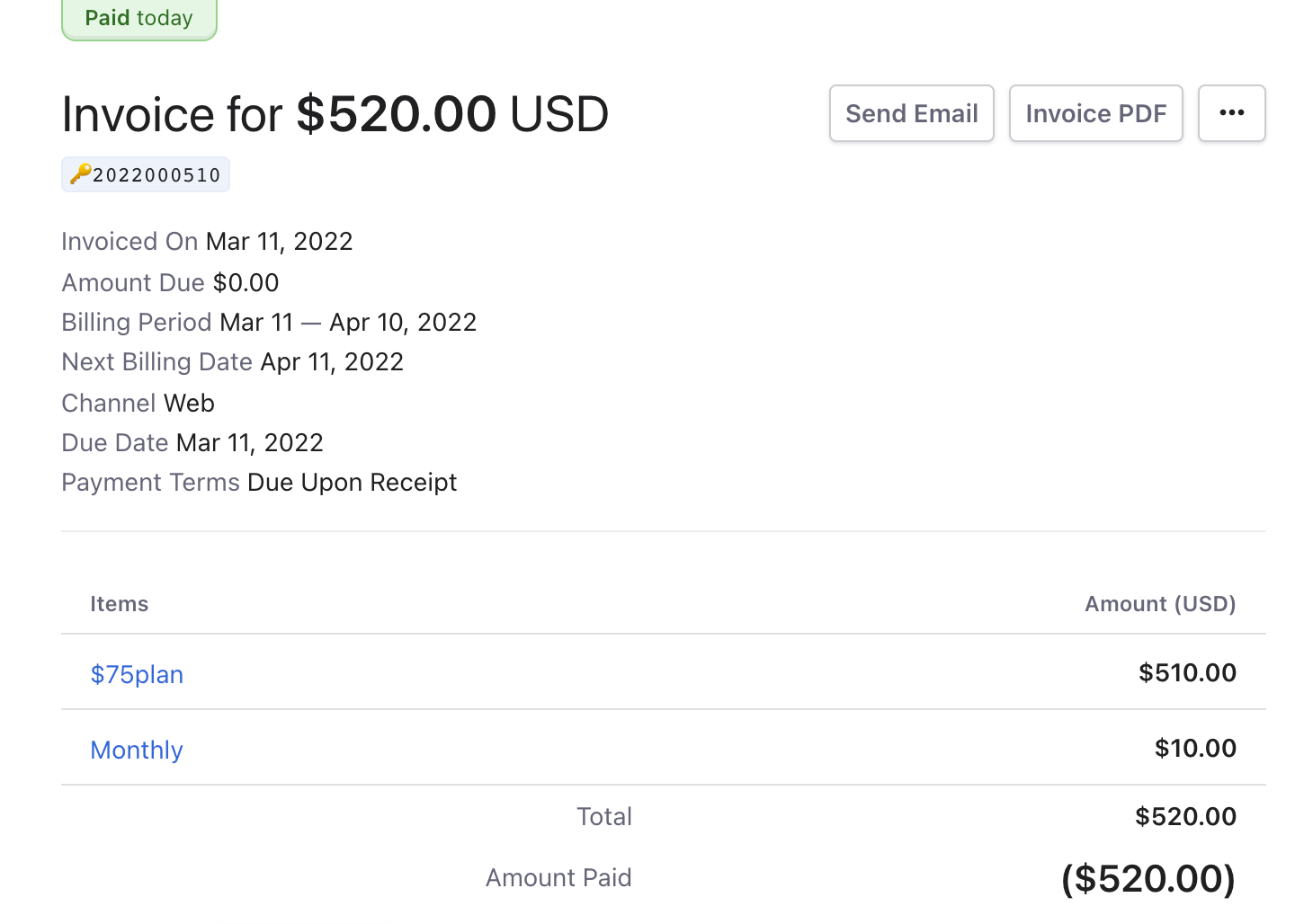
image

Now, you can see the difference between the invoices after these changes. Refer to the screenshot below.

image

You can also refer to this quick demo video from this link.

Related Documentation

How to remove the payments linked to an invoice?

How to remove excess payments for a customer

My customer has already wired the amount for their subscription, however, the card on file also got charged. What should I do?

Was this article helpful?