Amendment Quote
You can use amendment quotes to update existing subscriptions. This is ideal for cross-selling or upselling. For example, your Customer Success Manager might want to offer an addon to a customer with an active subscription.
Create an Amendment Quote
To create an amendment quote in your Chargebee Billing site, follow these steps:
-
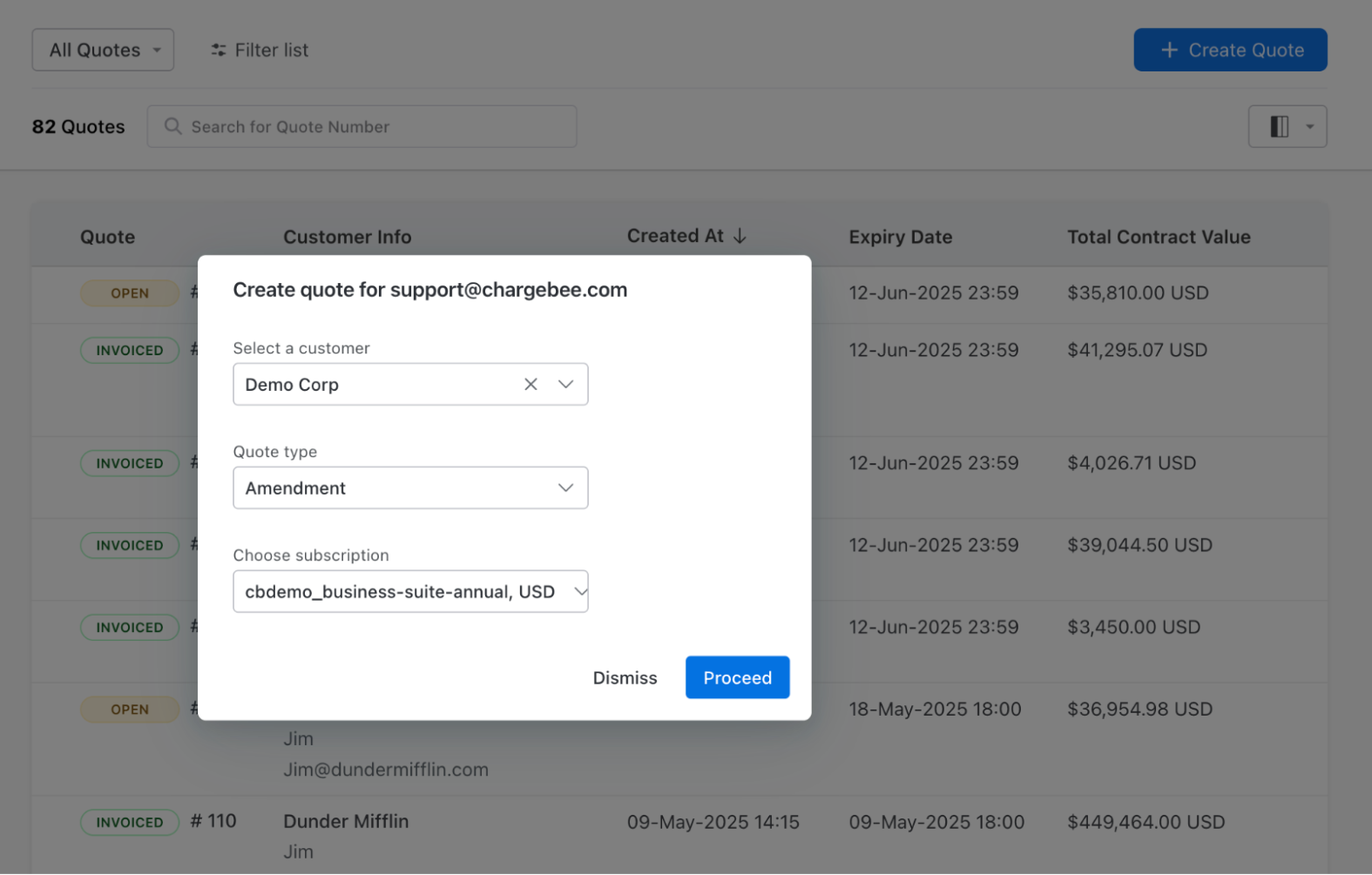
Navigate to the Quotes list page and click Create Quote. Alternatively, you can navigate to the specific customer or subscription record for which you are creating the quote and click Create and Send a Quote.
-
On the Create quote popup, do the following:
- In the Select a Customer dropdown, select the relevant customer.
- In the Quote Type dropdown, select Amendment.
- In the Choose Subscription dropdown, select the relevant subscription.
- Click Proceed.
-
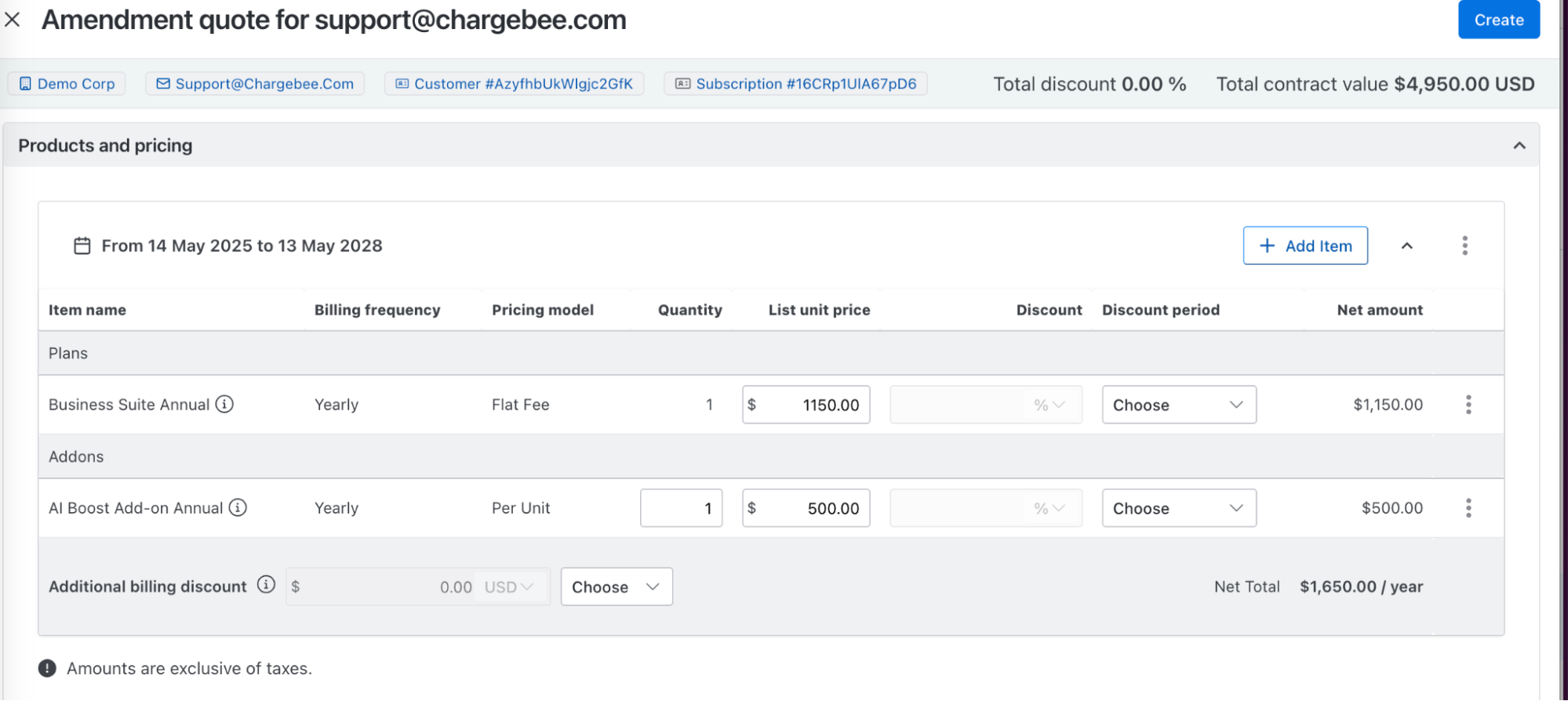
The contract and pricing details of the subscription record are auto-populated in the Amendment quote form. You can modify the details as required.
-
Click Add Item in the Products and Pricing section to add the necessary addon.
-
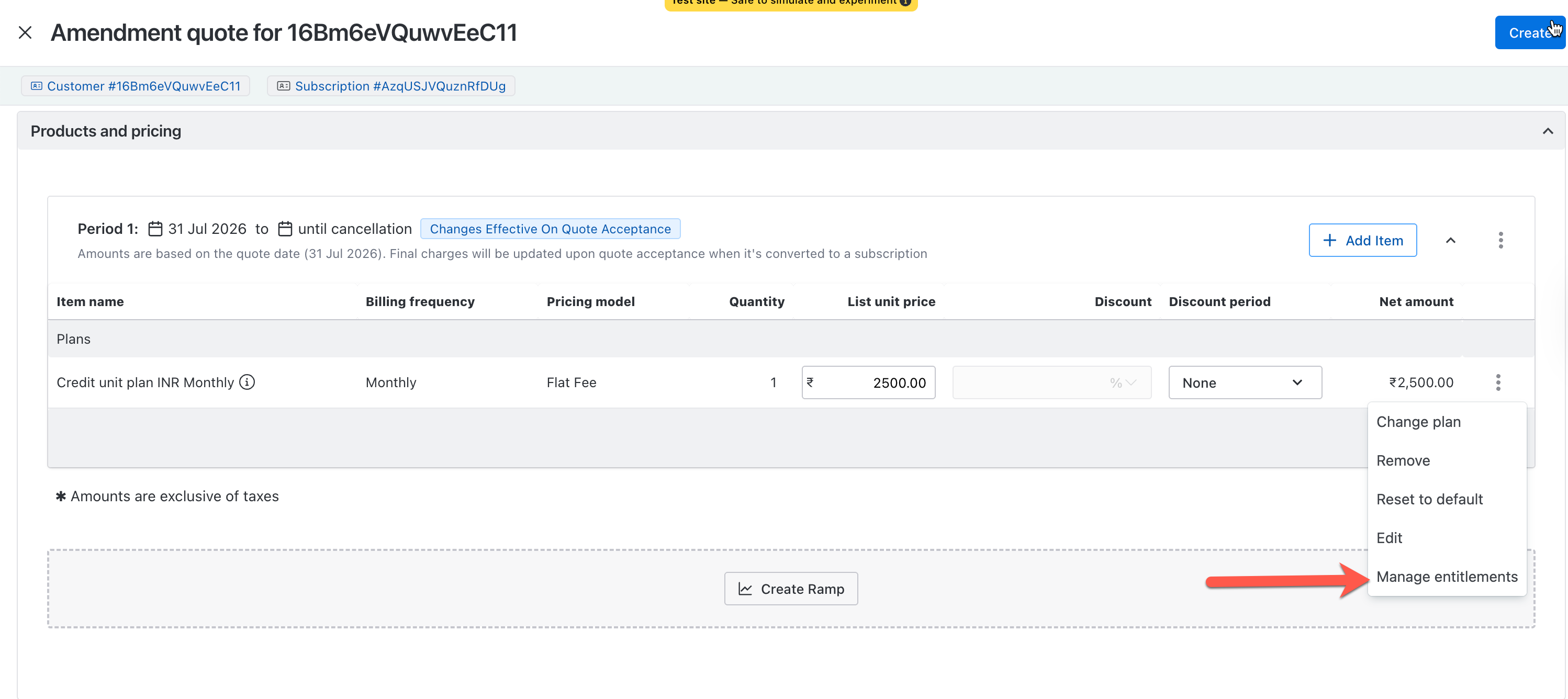
To customize the feature entitlements for a line item, open the three-dot menu on the line item row and click Manage Entitlements. Entitlement changes apply only to the current quote and don't affect your product's default configuration.
- Review the entitlements table:
- Feature: The name of the feature or capability.
- Default Value: The value inherited from the product configuration.
- Overridden Value: The customized value for this quote, if changed. Entitlements with overrides display an Override chip.
- Availability: A toggle that turns the feature on or off for this customer.
- Manage the entitlements:
- To edit an existing entitlement, click the Overridden Value field, or turn the Availability toggle on or off. Chargebee marks the change with an Override chip automatically.
- To add a new entitlement, click Add New Feature and search for the feature you want to add.
- To reset all overrides to the product's default values, click Enforce Standard Entitlements.
- Click Save Changes.
-
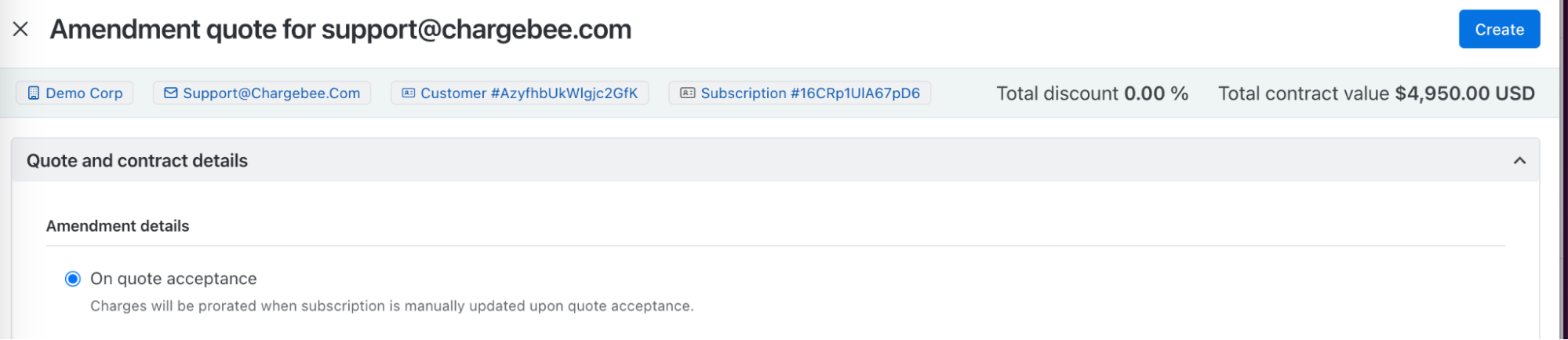
Under Amendment details, set the amendment's effective date to choose when the changes should take effect. You can choose from the following options:
- On Quote Acceptance: The subscription will be updated after the customer accepts the quote. This option is selected by default.
- On a Specified Date: Schedule the change by creating a ramp that adds the addon on a future date. This generates an amendment quote reflecting the scheduled update.
- On Quote Acceptance: The subscription will be updated after the customer accepts the quote. This option is selected by default.
-
Click Create. You have successfully created an amendment quote.
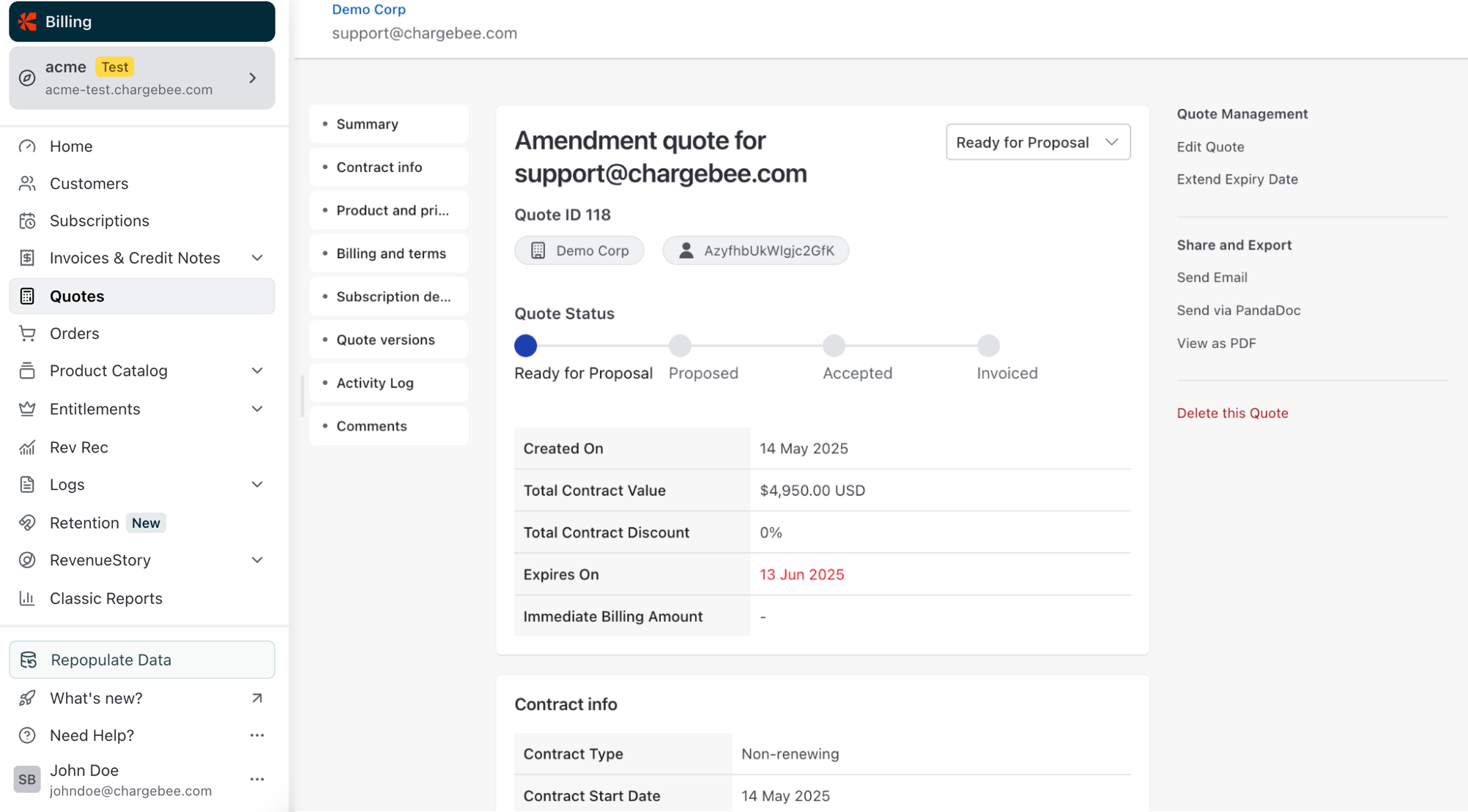
View Amendment Quotes
Click View Quote to download the quote PDF and review the amendment changes.
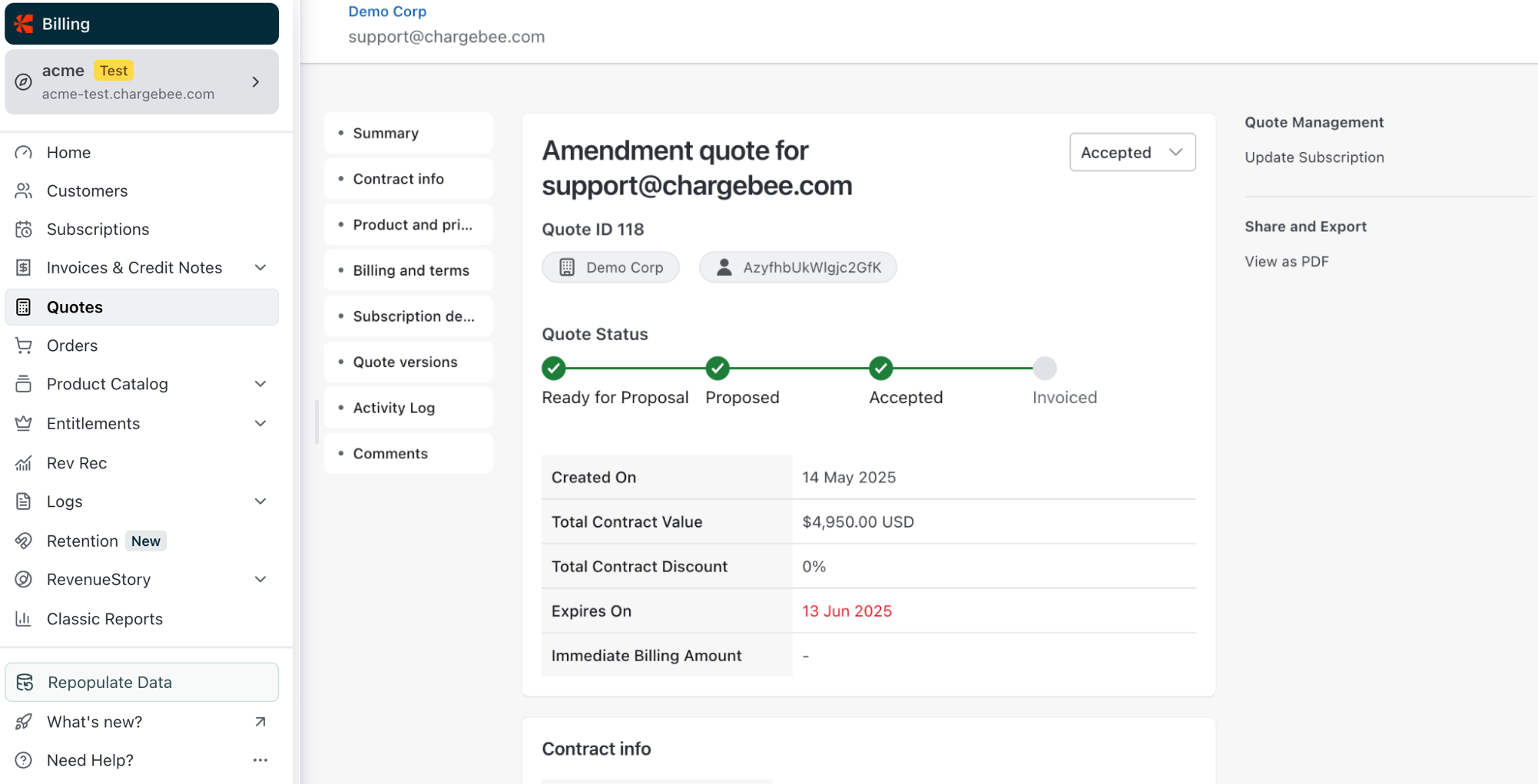
Next Steps
Once the quote is created follow these steps:
Was this article helpful?