Create a Quote for New Business
Use Chargebee CPQ in HubSpot to create subscription quotes for new customers directly from a HubSpot Deal. This process supports quoting for subscription plans, one-time fees, or a combination of both. Quotes can contain subscription items, one-time fees, or a combination of both.
Prerequisites
- Link the company to the contact.
- Before creating the quote, ensure that both the company and the contact are linked to the HubSpot deal.
To create a Quote for new business in HubSpot, follow these steps:
Step 1: Create a Deal in HubSpot
- Log in to your HubSpot account.
- Navigate to Deals from the left navigation pane.
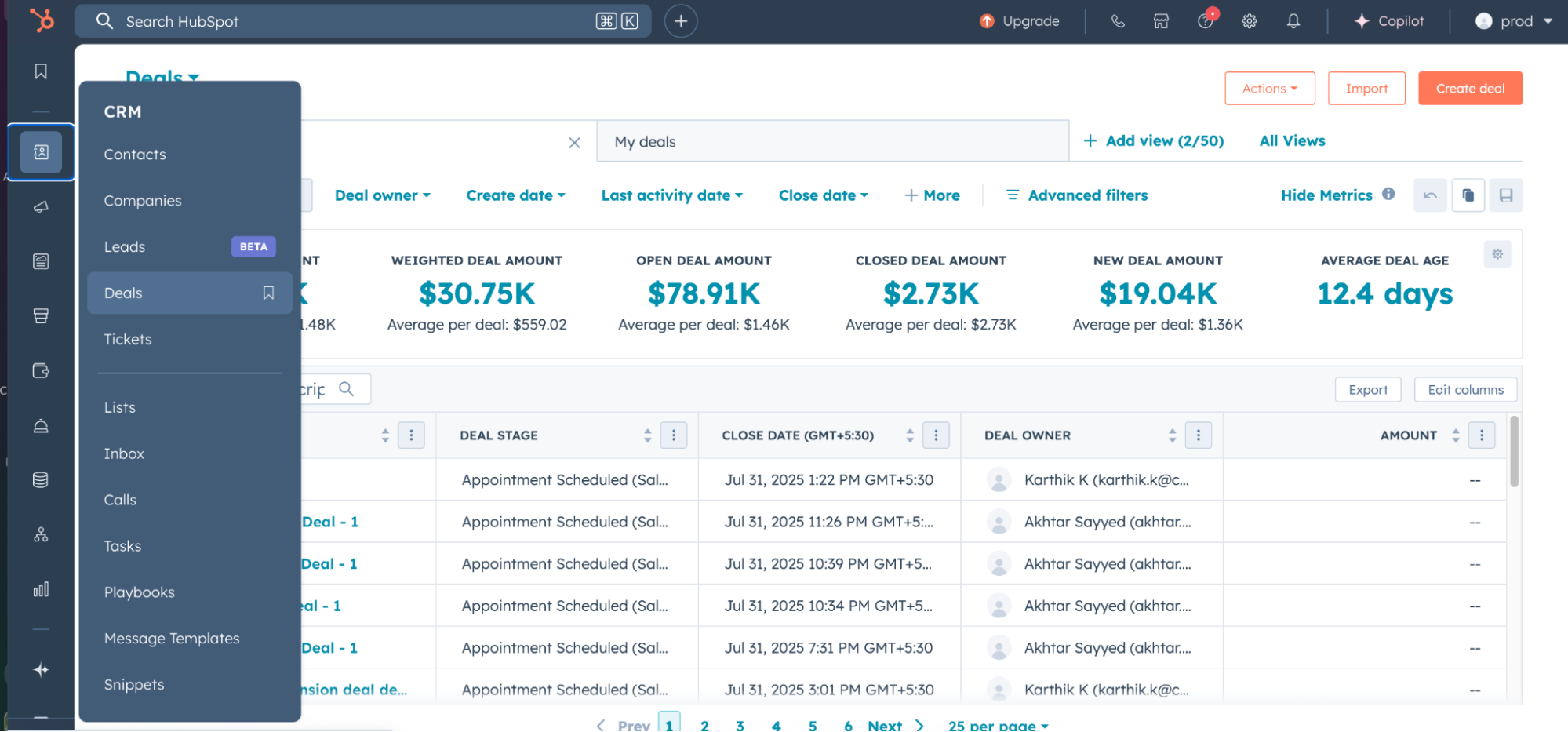
- Click Create Deals and select New Business as the Deal type.
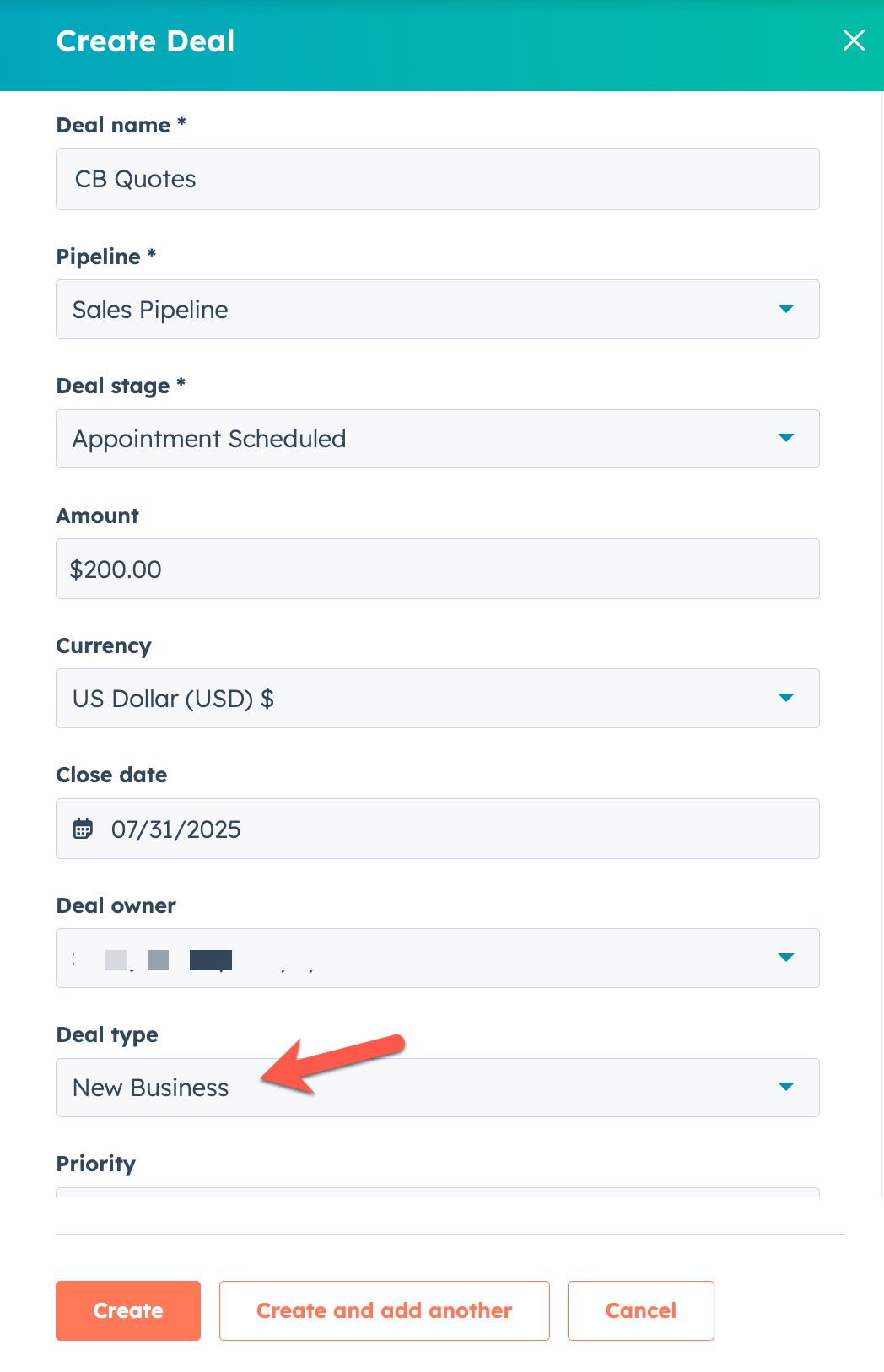
- Link the company to the contact, and link the contacts and the companies to the deal to ensure the Chargebee customer sync functions properly.
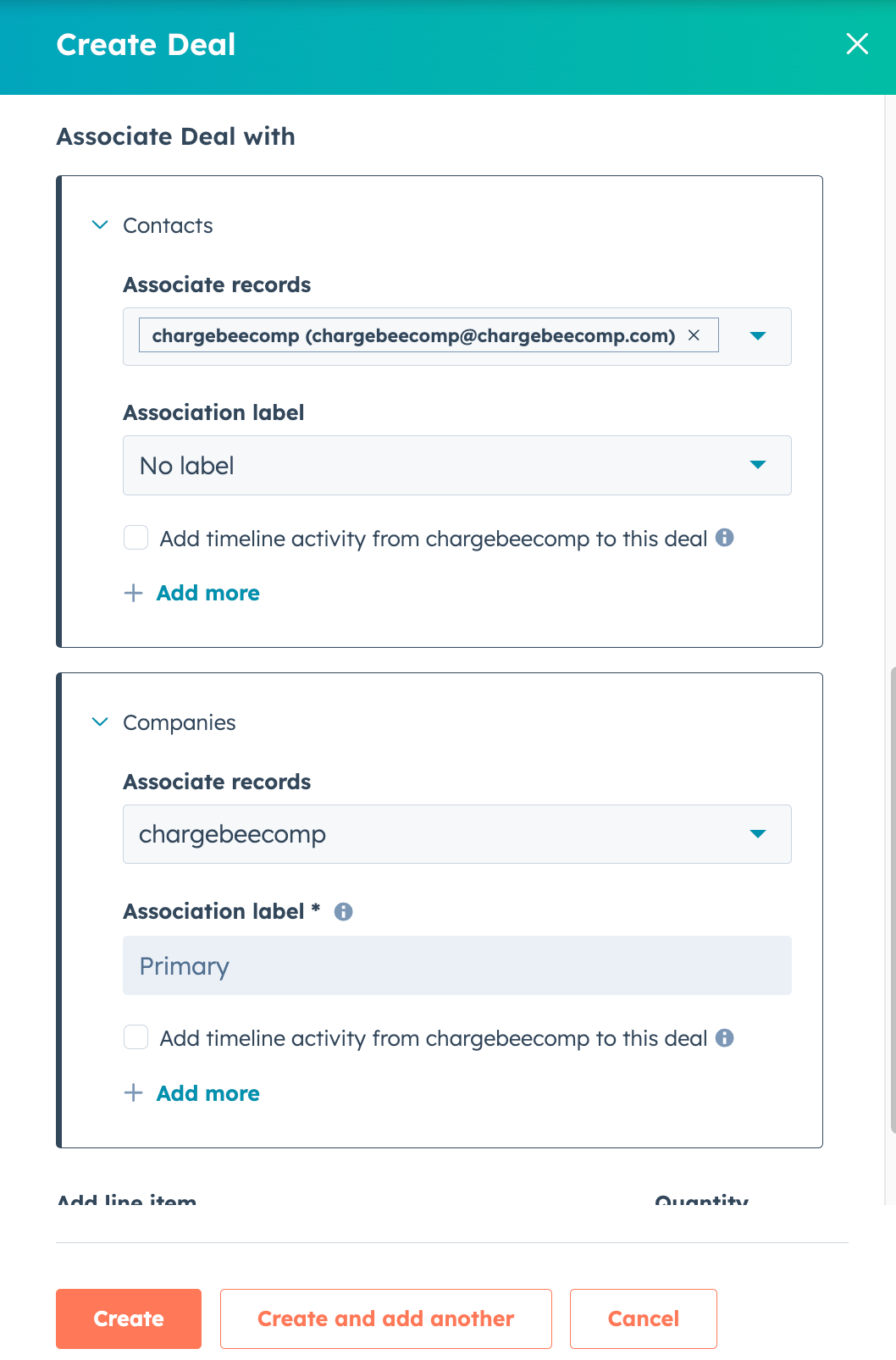
- Click Create. Learn more about creating a deal in HubSpot.
Step 2: Create a Quote from Chargebee CPQ
-
Navigate to Deals from the left navigation pane.
-
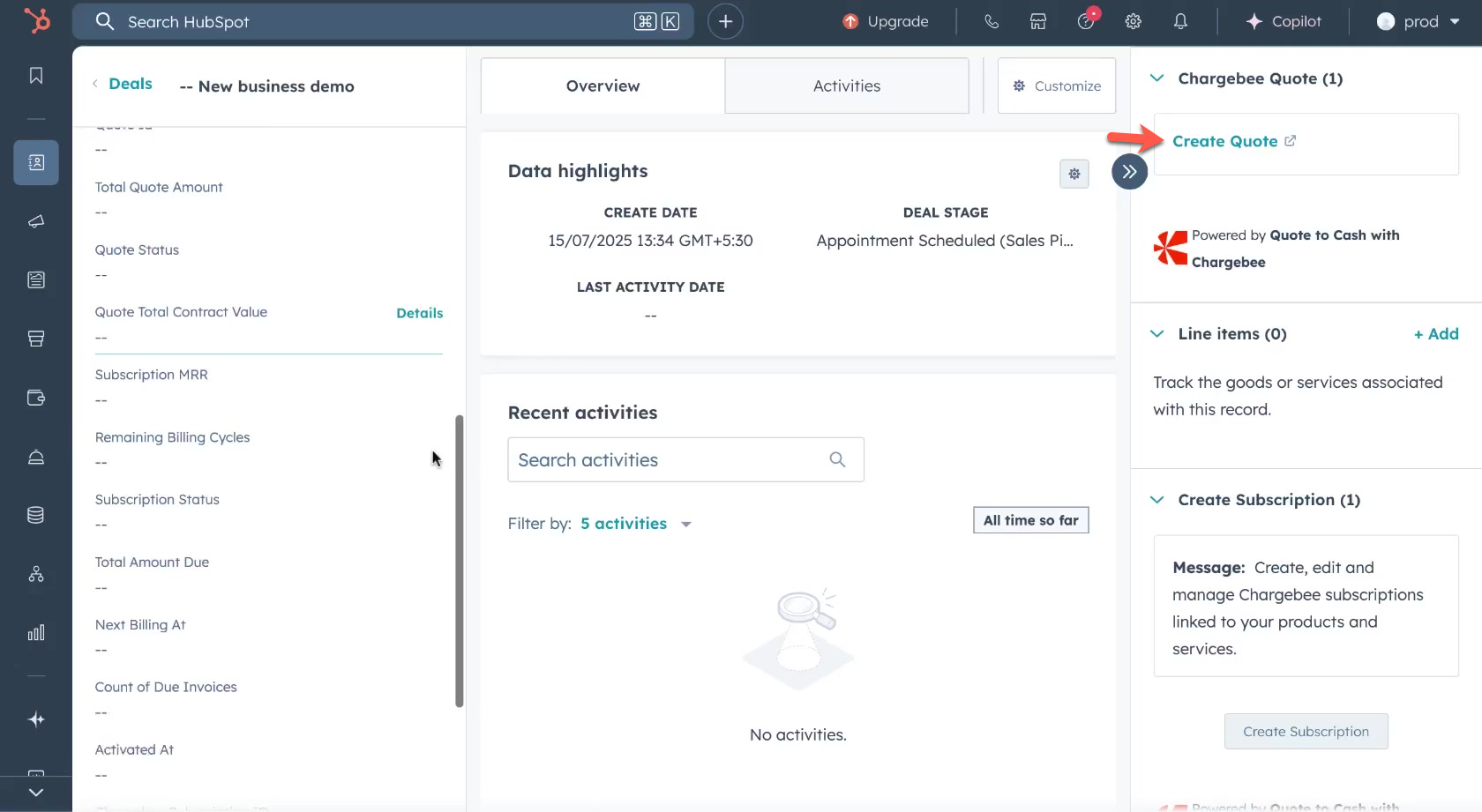
Open the deal for which you want to create a quote. Scroll down to the right panel and click Create Quote. You will be redirected to the Chargebee CPQ quote creation page.
-
Complete the contract details, include relevant items, and modify pricing or discounts as needed.
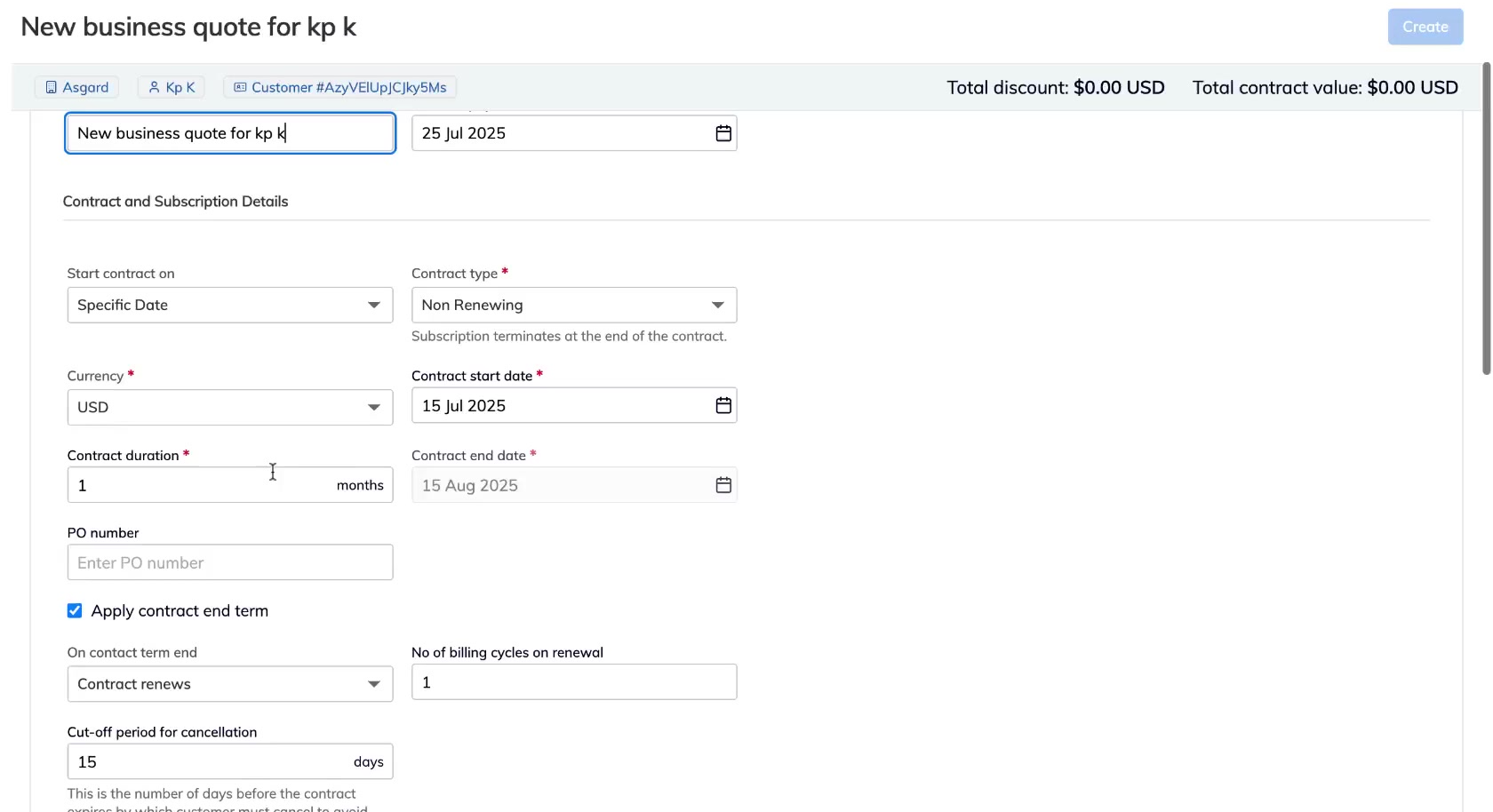
- Click Add Item to select an item type and billing frequency, click Add.
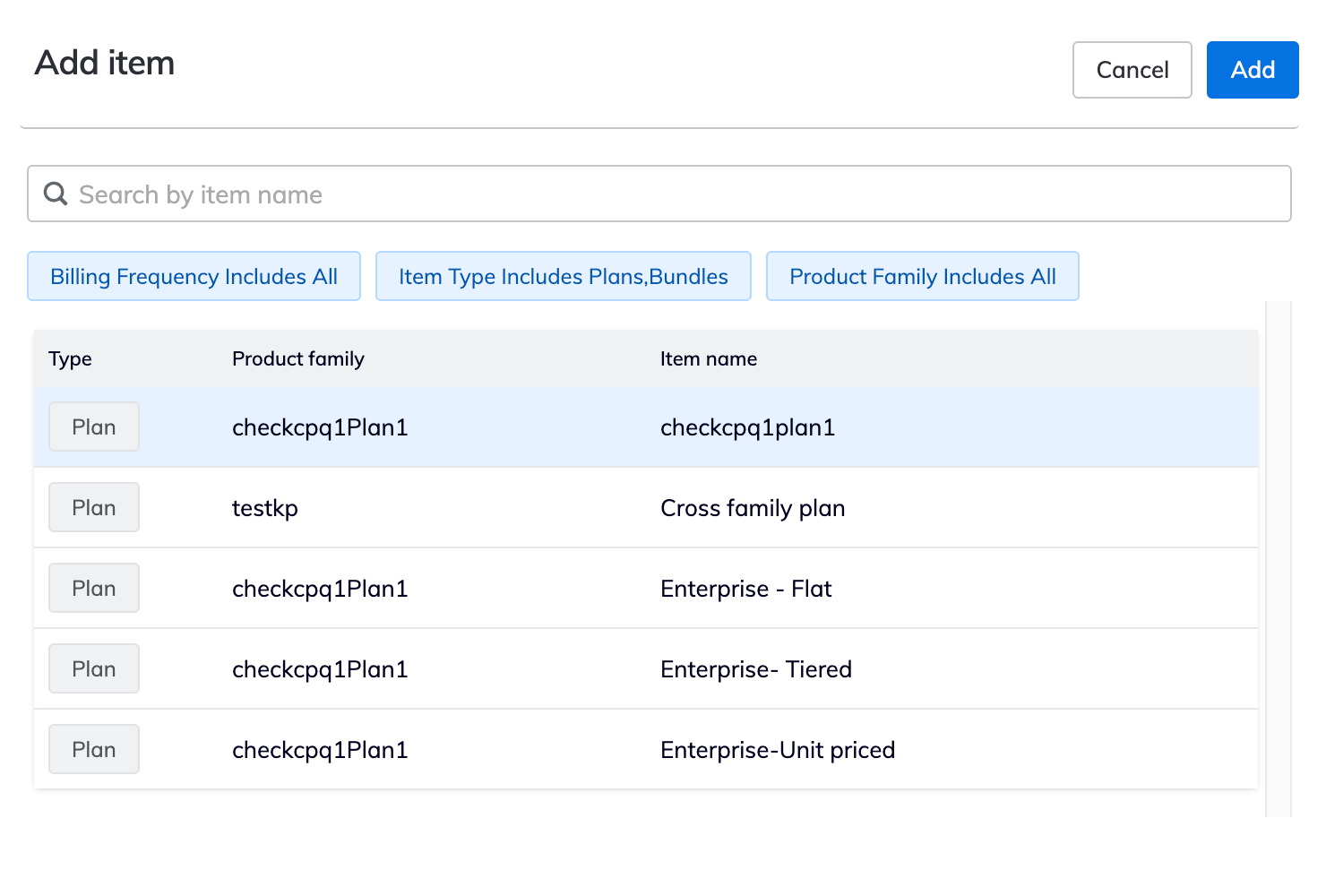
- Click Add Item to select an item type and billing frequency, click Add.
-
To customize the feature entitlements for a line item, open the three-dot menu on the line item row and click Manage Entitlements. Entitlement changes apply only to the current quote and don't affect your product's default configuration.
1. Review the entitlements table:
| Field | Description |
|---|---|
| Feature | The name of the feature or capability. |
| Default Value | The value inherited from the product configuration. |
| Overridden Value | The customized value for this quote, if changed. Entitlements with overrides display an Override chip. |
| Availability | A toggle that turns the feature on or off for this customer. |
2. Manage Entitlements:
- To edit an existing entitlement, click the Overridden Value field, or turn the Availability toggle on or off. Chargebee marks the change with an Override chip automatically.
- To add a new entitlement, click Add feature and search for the feature you want to add.
- To reset all overrides to the product's default values, click Enforce Standard Entitlements.
- Click Save Changes
-
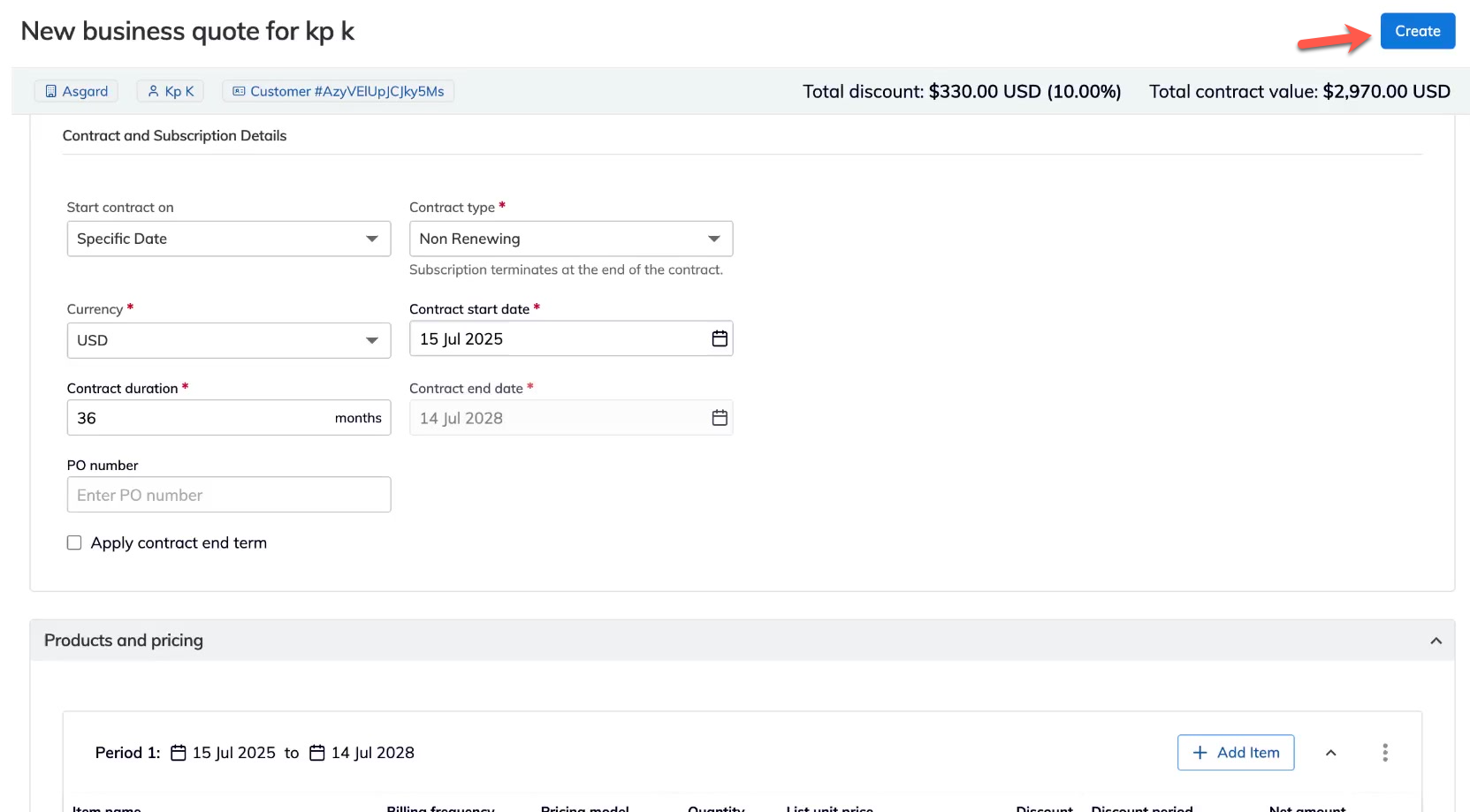
Click Create to finish the quote creation step.
You have successfully created a quote.
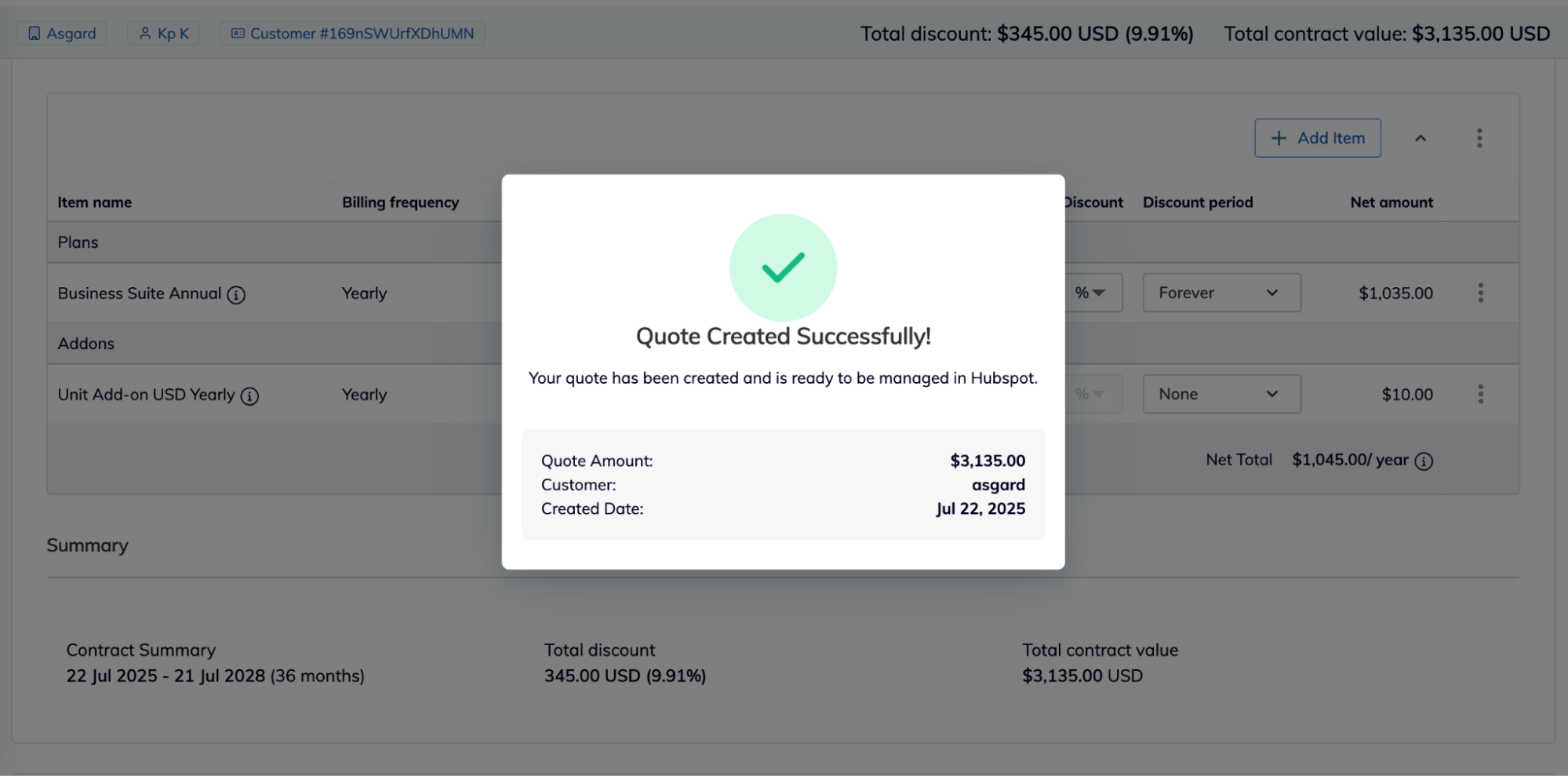
Step 3: Sync Quote Details with HubSpot
- Return to the HubSpot Deal page and reload the page to observe that the quote details are automatically synced with the CRM card, line items, and properties of the HubSpot deal.
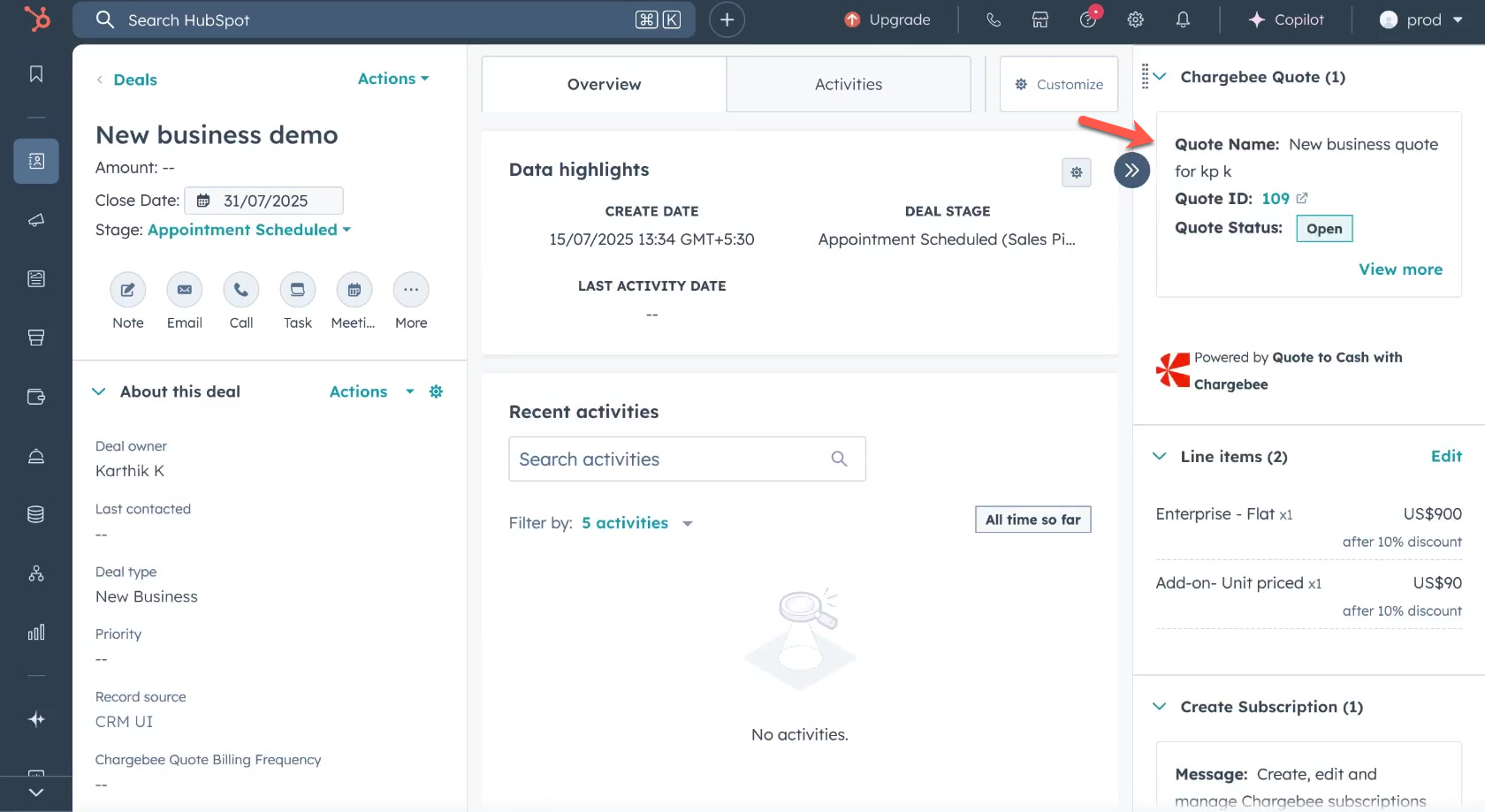
- Check the following fields for syncing Chargebee CPQ to deal properties for revenue forecasting and workflow automation.
Field Mapping
The tables below show how properties in the Chargebee CPQ quote object in HubSpot are mapped to fields in Chargebee and vice-versa:
Hubspot Deal to Chargebee Quote
| Hubspot Deal Field | Chargebee Quote Field | Type |
|---|---|---|
| Deal name | Quote name | Default |
| Deal type | Quote type | Default |
| Contact - Phone number | Customer - Email/ Phone number | Default |
| Company - Name | Customer - Name | Default |
Chargebee Quote to Hubspot Deal
| Chargebee Quote Field | Hubspot Deal Field | Type |
|---|---|---|
| Quote Status | Chargebee Quote Status | Default |
| quote id | Chargebee quote id | Default |
| quote net amount | Chargebee quote net amount | Default |
| billing frequency | Chargebee billing frequency | Default |
| currency | Chargebee currency | Default |
| Contract start date | Chargebee Contract start date | Default |
| Contract end date | Chargebee Contract end date | Default |
| Contract type | Chargebee Contract type | Default |
| Quote type | Chargebee Quote type | Default |
| Quote created at | Any deal field | Custom |
| Quote updated at | Any deal field | Custom |
| Quote expires at | Any deal field | Custom |
| Quote Accepted at | Any deal field | Custom |
| PO number | Any deal field | Custom |
| Payment terms | Any deal field | Custom |
| Contract discount amount | Any deal field | Custom |
| Contract duration | Any deal field | Custom |
| Any other custom fields | Any deal field | Custom |
Read Next:
Was this article helpful?